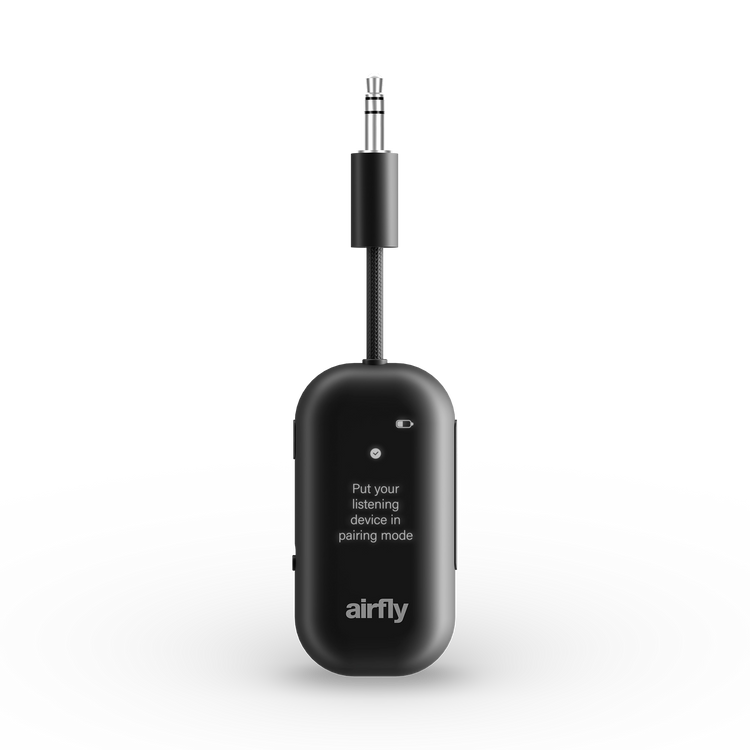
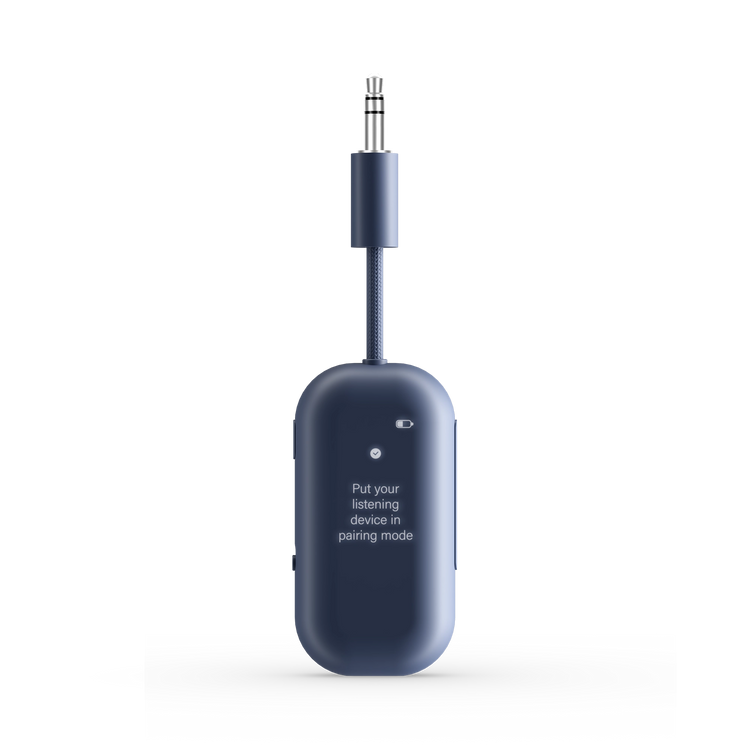
What is Airfly View, and how is it different from Airfly Pro 2?
Airfly View lets you enjoy wireless audio from devices with a 3.5mm headphone jack, including airplane entertainment systems, gym equipment, and more. Like Airfly Pro 2, it connects two sets of Bluetooth headphones and supports both transmitting and receiving audio. The difference? Airfly View features a built-in display that makes pairing, managing connections, and switching modes easier than ever. No more guessing whether your headphones are connected!
How do I pair my AirPods or Bluetooth headphones with Airfly View?
Pairing your headphones with Airfly View is simple:
Turn on Airfly View and make sure it's in Transmit (TX) mode.
Put your AirPods or Bluetooth headphones into pairing mode.
Follow the prompts on Airfly View's display and select "Confirm" to begin searching.
Once your headphones are located, Airfly View will display their name and confirm the connection.
Plug Airfly View into your device's headphone jack, and you're ready to listen wirelessly!
Can I connect two sets of headphones to Airfly View at the same time?
Absolutely! Airfly View allows two people to listen to the same audio source using their own Bluetooth headphones. Perfect for sharing an in-flight movie or listening to music together.
To connect a second pair:
Make sure your first pair of headphones is connected.
Put your second pair into pairing mode.
Open the Menu on Airfly View and select "Add Device."
Select your second pair from the list of available devices.
Once connected, both headphone names will appear on Airfly View's display.
How do I switch between Transmit (TX) and Receive (RX) modes on Airfly View?
Airfly View works in two directions, giving you more ways to enjoy wireless audio.
Transmit (TX) Mode: Sends audio from an airplane screen, treadmill, or other device with a headphone jack to your Bluetooth headphones.
Receive (RX) Mode: Streams audio from your phone or tablet to a car stereo, speaker, or other device with an AUX-in port.
To switch modes, open Airfly View's Menu, select "Mode," and choose your preferred option. The display will guide you through connecting your device.
What is Auracast mode, and how do I use it with Airfly View?
Airfly View supports Auracast, a Bluetooth audio broadcasting technology that allows compatible listening devices to receive shared audio.
To use Auracast:
Open the Menu on Airfly View.
Select "Mode," then choose "Auracast."
Put your Auracast-compatible headphones, hearing devices, or speakers into the appropriate pairing or listening mode.
Follow the instructions for your listening device to connect.
Auracast requires compatible listening devices, so be sure to check your headphones' or speakers' specifications before getting started.
What Bluetooth headphones are compatible with Airfly View?
irfly View works with Bluetooth wireless headphones and earbuds, including Apple AirPods, AirPods Pro, AirPods Max, and
popular options from Bose, Sony, Beats, and more.
Airfly View uses the standard Bluetooth audio profile (A2DP), just like Airfly Pro 2. While some Bluetooth-enabled hearing aids may be compatible, not all hearing aids support this profile. We recommend checking with your hearing aid manufacturer to confirm that your specific model supports A2DP Bluetooth audio before purchasing.
Airfly View's built-in display makes connecting easy by showing available devices and confirming successful connections, taking the guesswork out of pairing!
What should I do if my headphones won't connect to Airfly View?
If you're having trouble connecting, try these quick troubleshooting steps:
Make sure Airfly View is powered on and set to Transmit (TX) mode.
Confirm your headphones are in Bluetooth pairing mode and disconnected from nearby devices, such as your phone or laptop.
Open Airfly View's Menu and select "Add Device" to search again.
If your headphones were previously connected, select "Forget" from the Menu and try pairing again.
If the issue continues, use the "Reset" option in the Menu and restart the pairing process.
Still need help? Visit Twelve South Support and our team will be happy to assist!